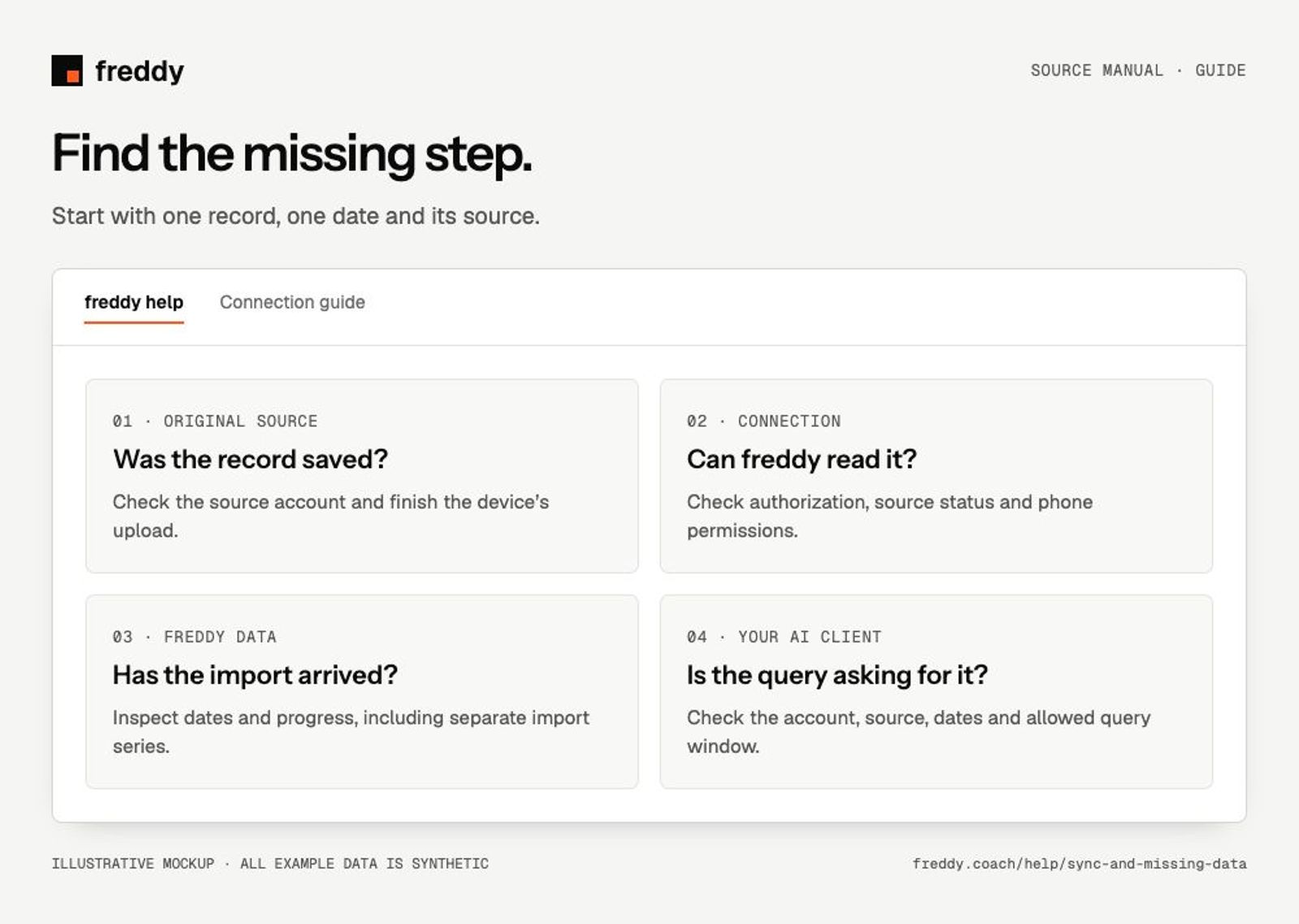
Start with one missing record and follow its path. A connection status shows access; the import status and dates show what has arrived.
1. Check the original record
Open the app or service that recorded it. Confirm it is saved, assigned to your account and fully synced from the device. Note the date, category and source without sharing private health values in a public report.
2. Check the route
- Direct connection: open its source in freddy and inspect authorization, Active or Paused, and the import progress.
- Phone bridge: first find the exported record in Apple Health or Health Connect. Then check freddy’s read permission for that category.
- Archive import: distinguish the file upload from the processing that follows. Keep the upload page open until it confirms upload completion.
3. Check freddy Data
Look for the source and date in Data. An imported record can use a different series from a live record. A provider may supply daily summaries while its own app displays a detailed chart.
Sync or re-import?
- Sync checks for updates through that source’s supported route. Start here when recent records are missing.
- Re-import all history requests the history currently available through the connection. It cannot extend a provider’s archive window, recreate records never exported to a phone, or grant missing permissions.
- A running import may take longer for a large archive or a provider that limits requests. Check progress before starting another one.
History has more than one limit
The source controls what it shares. Your phone controls what an app may read. freddy’s import determines what has arrived. Your account’s query window determines what your AI client can request. A shorter AI query window does not mean freddy deleted older stored data.
If the AI answer is missing records
Ask for the exact date range, source names and available records before requesting a comparison. If the data is visible in freddy, check that your AI client is connected to the same freddy account and that the dates are in its allowed query window.
If numbers do not match
Check units, timezone, daily boundaries and the original data type. A sleep score is not sleep duration; a training estimate is not a measured value. If two sources recorded the same session, check overlap before adding totals.
Before disconnecting
Use Paused to stop future sync when you want to keep history. Disconnect can delete the source’s stored data in freddy. It is not the first step for a slow import. Phone permission revocation and Clear stored history are separate actions; read the confirmation for the scope.
Contact support
Send the source name, phone platform if relevant, missing category, approximate date and the status or error text you see. Keep API keys, tokens and private measurements out of the message.