Bring WHOOP sleep, recovery, HRV, strain, and workouts together with your other health and fitness sources. Compare a night’s sleep with the run you recorded on Garmin or the strength session you logged in Hevy, then explore the pattern through your preferred AI assistant.
You connect your own WHOOP account and choose which AI clients can access freddy. WHOOP access is read-only and revocable.
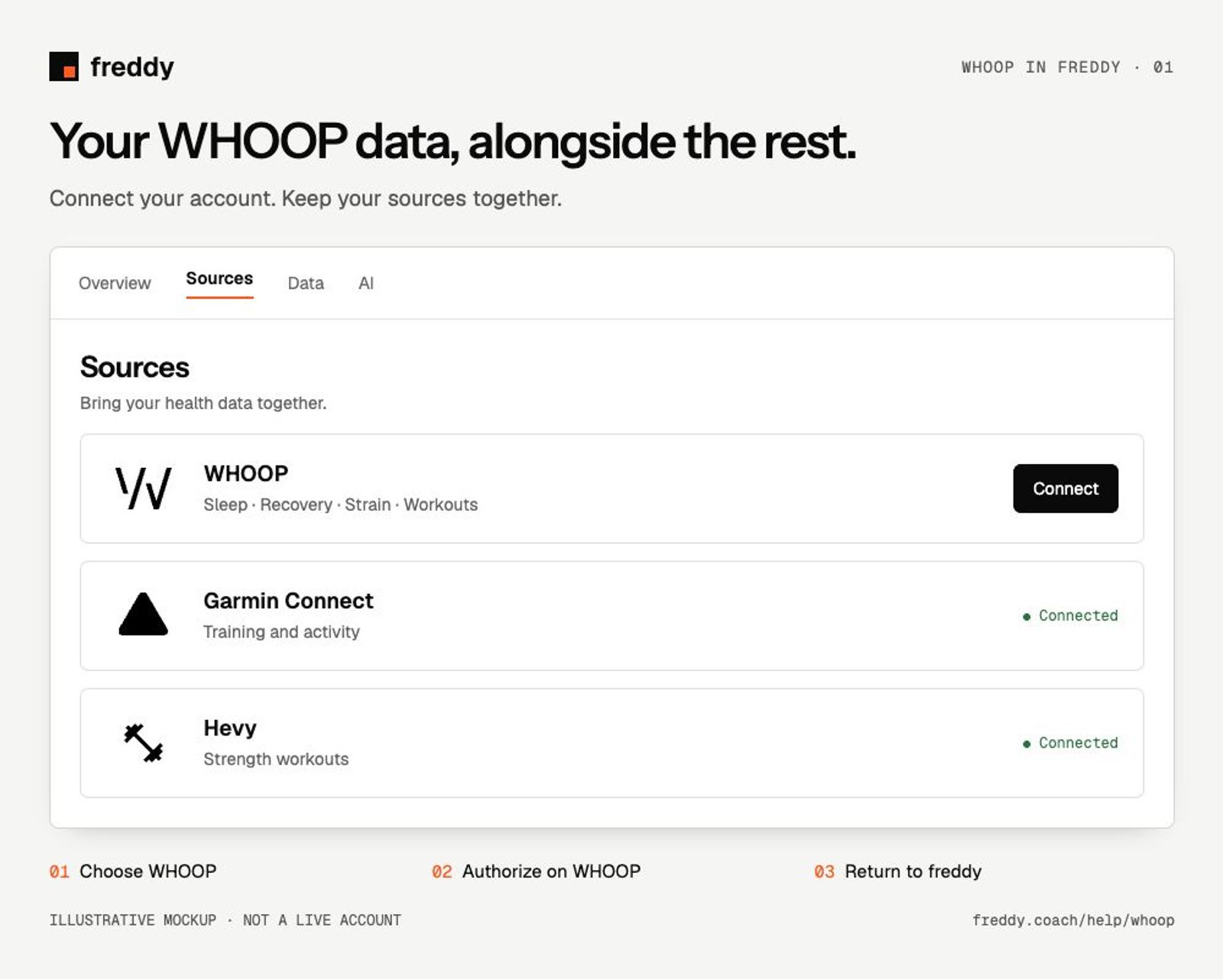
Illustrative mockup of the connection flow. Layout may differ between web and mobile.
Connect your WHOOP account
Start with your WHOOP login and a freddy account. Open Sources in your browser and sign in if prompted.
- Find WHOOP in the source list and choose Connect.
- Sign in on WHOOP’s authorization page with the account you use in the WHOOP app.
- Review the requested access and authorize freddy. Your WHOOP password stays with WHOOP.
- Return to freddy. Open the WHOOP source card to follow the initial import and check its connection status.
You do not need a WHOOP developer account, API key, or manual data export.
What freddy reads from WHOOP
Available records depend on your WHOOP history, permissions, and whether WHOOP has finished processing them.
- Sleep: start and end times, sleep stages, time awake, sleep performance, consistency, and respiratory rate.
- Recovery: recovery score, heart rate variability (HRV), resting heart rate, and blood oxygen or skin temperature when available.
- Strain: physiological-cycle strain, energy expenditure, and average and maximum heart rate.
- Workouts: activity type, duration, strain, heart rate, and time in heart rate zones.
- Profile and body measurements: basic profile details, height, weight, and maximum heart rate when available.
These are WHOOP’s records and scores. WHOOP scores stay attributed to WHOOP when you compare them with another source.
Put WHOOP alongside your other sources
Connect the accounts you want to compare in Sources. For example, use WHOOP for sleep and recovery, Garmin for running or cycling, and Hevy for sets, reps, and strength sessions. Your freddy plan determines how many sources and how much history your AI can query.
Then connect freddy to your AI assistant using the AI setup guides and ask a question across the accounts you have linked.
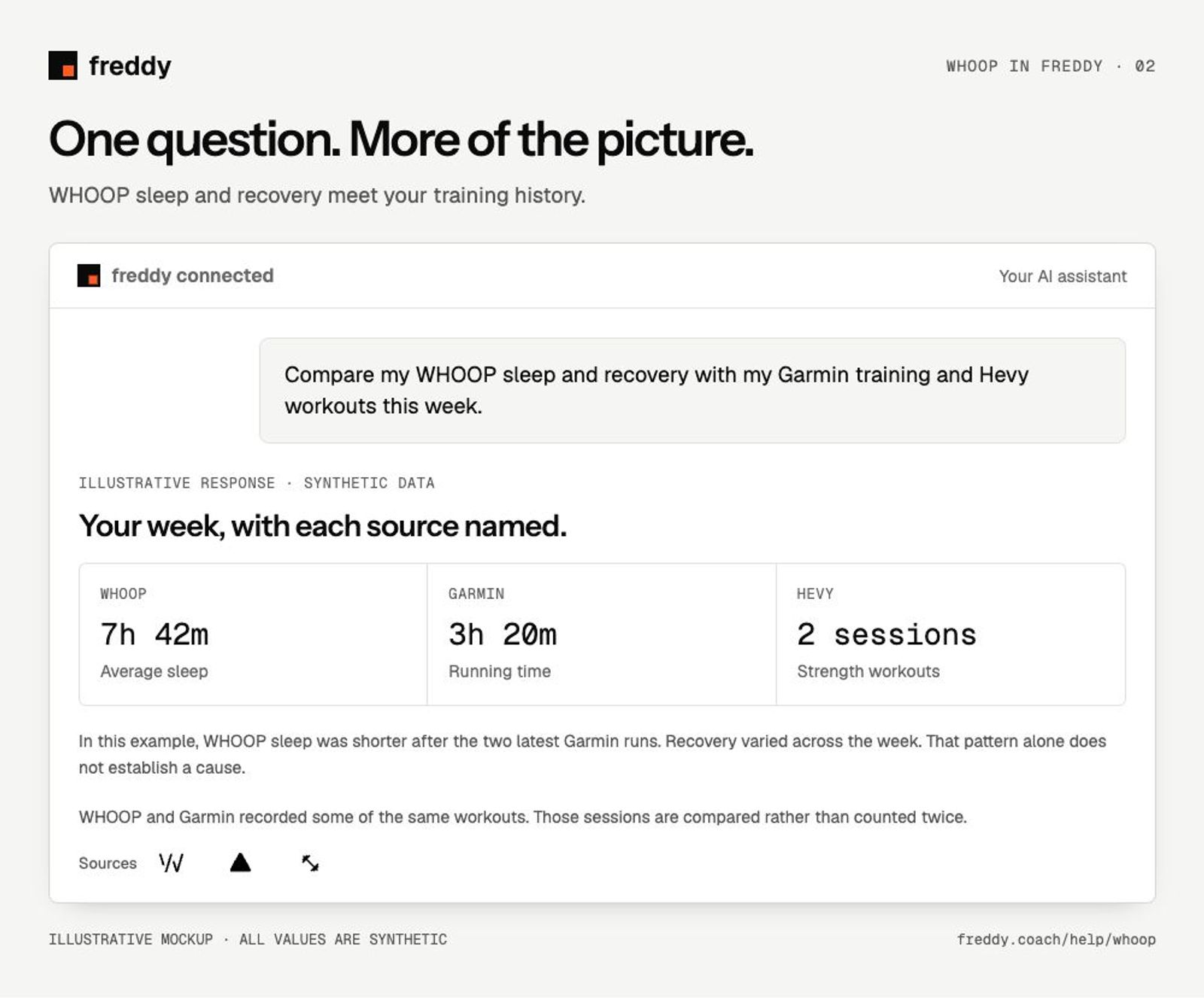
Illustrative conversation with synthetic data. The response and layout depend on your AI client, question, and available records.
Try asking:
Compare my WHOOP sleep and recovery with my Garmin training and Hevy workouts over the last two weeks. Name each source, flag missing days, and check for duplicate workouts before calculating totals.
How have my WHOOP HRV and resting heart rate changed over the last month? Compare each with its own recent baseline.
If you record one workout in two apps, ask your assistant to identify the overlap rather than add both records. Keep each source’s recovery and HRV measurements separate when comparing them.
Sync and history
freddy imports the WHOOP history available through the connection, then keeps it updated through WHOOP notifications and background synchronization. You can check progress or request a sync from the WHOOP source card. Larger history imports can take longer than a routine update.
New sleep and recovery records may arrive at different times. A record can appear before WHOOP has finished calculating its score. If a value is missing, first check whether it is available in the WHOOP app.
Pause or disconnect
Pause WHOOP from its source card to stop syncing while keeping the imported data. Resume it when you want updates again.
To remove the connection, choose Disconnect in the WHOOP source card and review the confirmation. Disconnecting removes the WHOOP data held in freddy; it does not delete the original records in your WHOOP account.
Your AI client has its own data policies. See freddy’s privacy policy for how freddy handles connected data.
If something is missing
- WHOOP asks you to reconnect: use the reconnect action on the source card and authorize the same WHOOP account again.
- Today’s data is missing: check that your WHOOP app has received and processed it, then run a sync in freddy.
- Older data is missing: check the import status and your plan’s query window. Re-import history from the source card if the import itself is incomplete.
- You see a capacity or waitlist message: use the waitlist option shown. This is a limit on new WHOOP connections; changing your freddy plan does not bypass it.
Still stuck? Message support with the error text and the step where it happened. Do not send your password or access tokens.
Reference: WHOOP’s data documentation. Guide checked September 14, 2026.