Connect Oura sleep, readiness and daily activity so you can compare them with training, food logs and other records in freddy.
Before you connect
Sync your ring in the Oura app. Oura account or membership restrictions can affect the data its service returns.
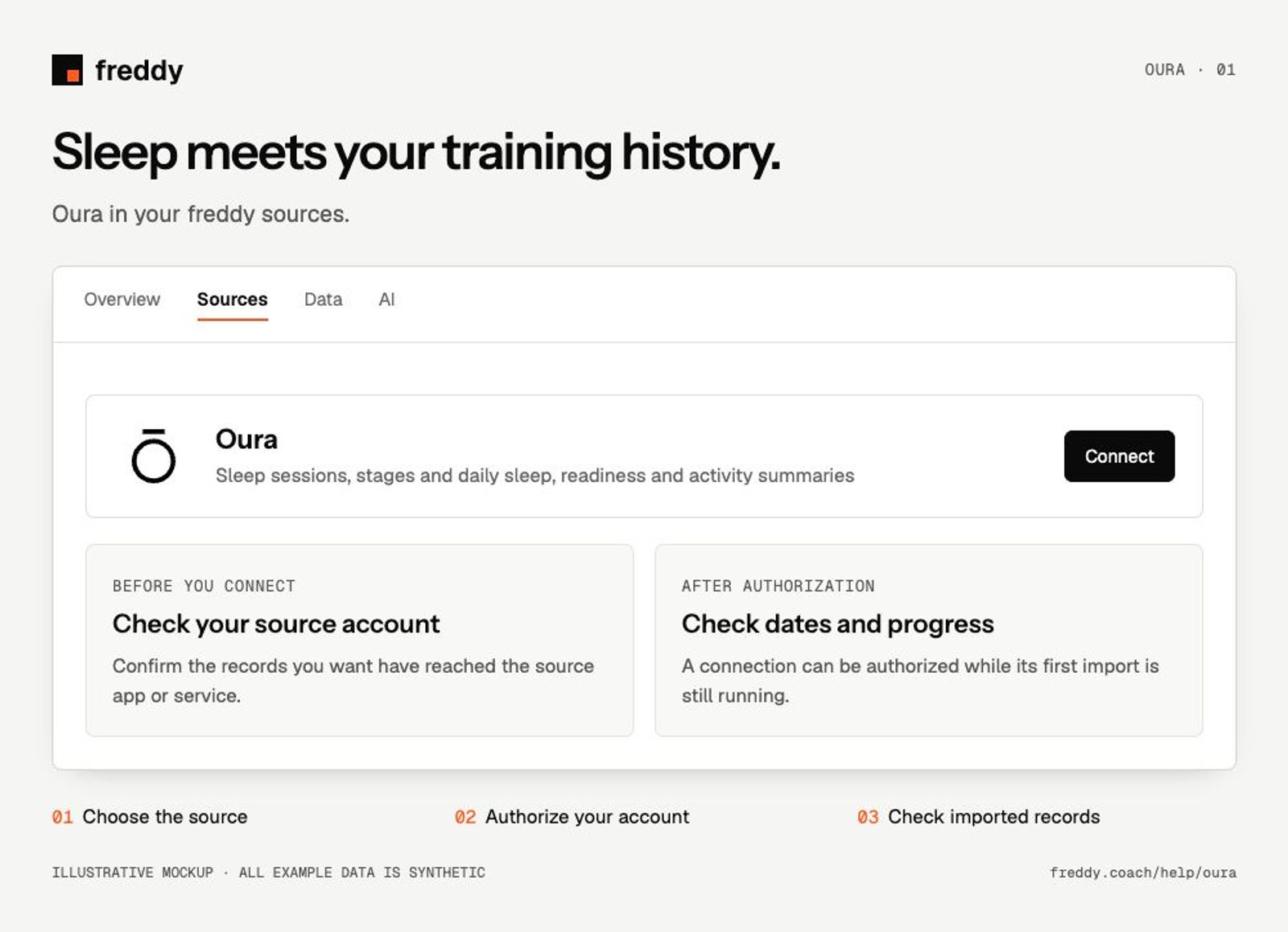
Connect
- Open Oura in Sources and choose Connect when available.
- Sign in to the Oura account containing your records. Review the permissions and authorize the categories you want to share.
- Return to freddy and inspect the source’s import status and date coverage.
What reaches freddy
- Sleep sessions, stages and daily sleep, readiness and activity summaries.
- Heart rate, HRV, temperature trends, oxygen saturation and workouts when available.
- Stress, resilience and heart-health records supported by your ring, account and granted permissions.
History and updates
freddy imports the history Oura makes available, then receives updates as new records are processed. A night or daily score may appear after Oura finishes processing it. A connected account does not mean the first history import is complete.
If data is missing
- New sleep is missing: open Oura, let the ring sync, and check that the sleep session has finished processing.
- Only some categories appear: check the read permissions granted to freddy. New Oura categories may need renewed authorization.
- Older data is missing: inspect the date coverage before using Re-import all history. A query window in your AI client is separate from stored history.
Use it with your other sources
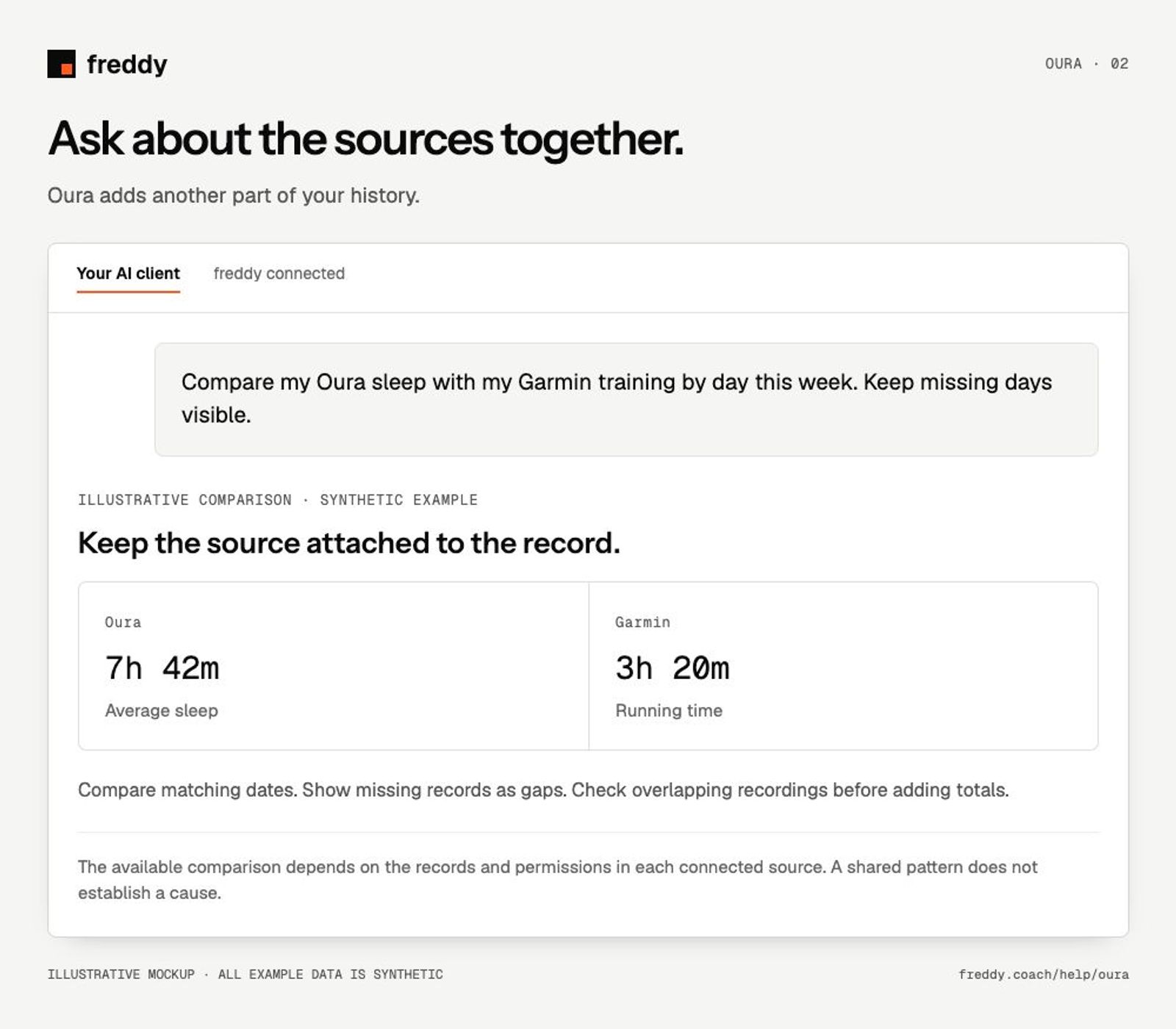
Compare my Oura sleep with my Garmin training by day this week. Keep missing days visible.
Pause or disconnect
Use Paused on the source to stop future sync without deleting its stored history. Disconnect removes the connection and its associated data from freddy; read the confirmation before continuing. It does not delete your records in Oura. You can also revoke freddy’s authorization in the source service’s connected-app settings.