The Dexcom connection is in alpha in freddy. When access is enabled, it brings historical glucose records into the same timeline as your other sources.
Before you connect
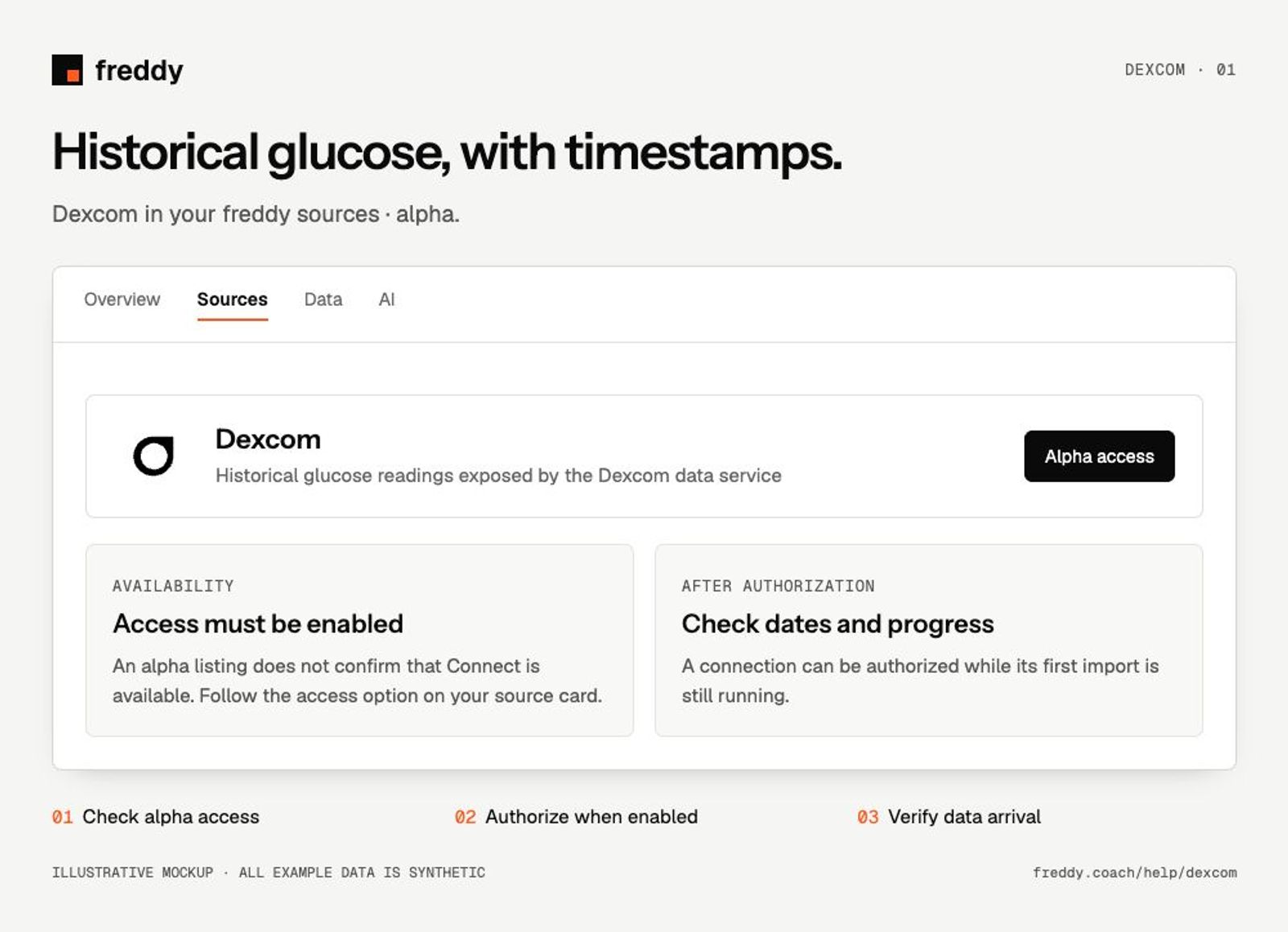
Check the Dexcom source card for access. A listing in the catalog is not confirmation that the alpha is enabled for your account. Use the Dexcom account associated with your recorded data.
Connect
- Open Dexcom in Sources. If access is restricted, use the access or waitlist option shown.
- When Connect is enabled, sign in through Dexcom and review the requested data permissions.
- Return to freddy and inspect the dates of the imported records.
What reaches freddy
- Historical glucose readings exposed by the Dexcom data service.
- Available device, calibration and event records included in the authorized data.
- The provider’s timestamps and units, so readings can be compared with other dated records.
History and updates
Dexcom’s shared data can be delayed. This connection is for reviewing historical records, not real-time glucose alerts or treatment decisions. Keep using your Dexcom device and app for their intended monitoring functions.
If data is missing
- Connect is unavailable: alpha access is restricted; reconnecting another source will not enable it.
- Recent readings are absent: compare timestamps and allow for the Dexcom service’s delay.
- Glucose units differ across views: retain the units with each value before making comparisons.
Use it with your other sources
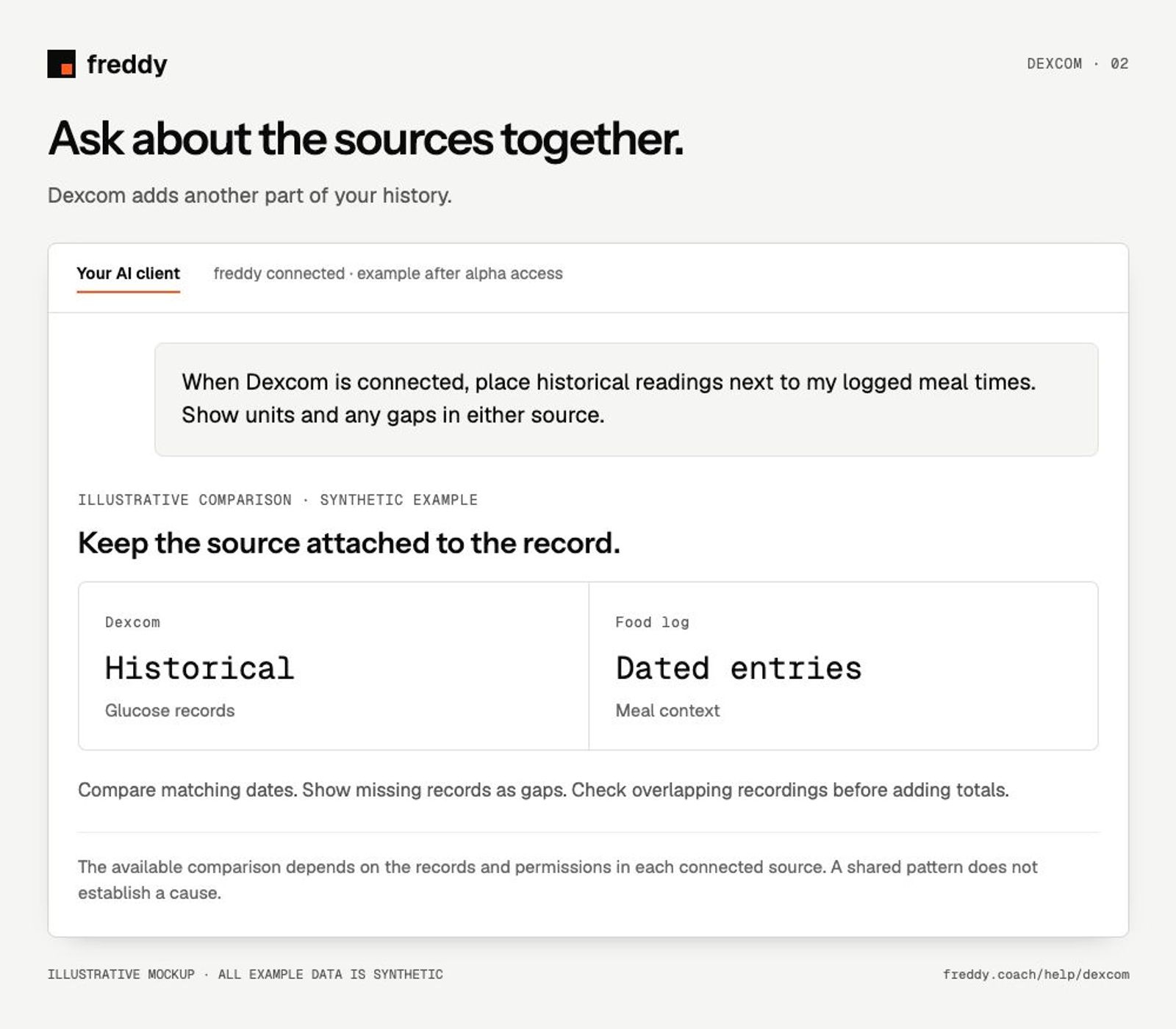
When Dexcom is connected, place historical readings next to my logged meal times. Show units and any gaps in either source.
Pause or disconnect
Use Paused on the source to stop future sync without deleting its stored history. Disconnect removes the connection and its associated data from freddy; read the confirmation before continuing. It does not delete your records in Dexcom. You can also revoke freddy’s authorization in the source service’s connected-app settings.
Provider instructions
Dexcom developer data documentation