The direct Garmin connection can request roughly the last 31 days. Use a Garmin data export for older account history and the separate FIT import for supported activity-file detail.
Request your Garmin export
- Open Garmin Account Data Management and sign in to the account connected to freddy.
- Choose Export Your Data and request the export. Wait for Garmin’s download email.
- Download the ZIP and keep the original file. Large archives are easier to handle on a computer.
Garmin Account Data Management
Import account history
- Open Garmin Connect in freddy Sources and find the export import options when available for your account.
- Choose Import account history and select the downloaded ZIP. The browser identifies the supported account-history files.
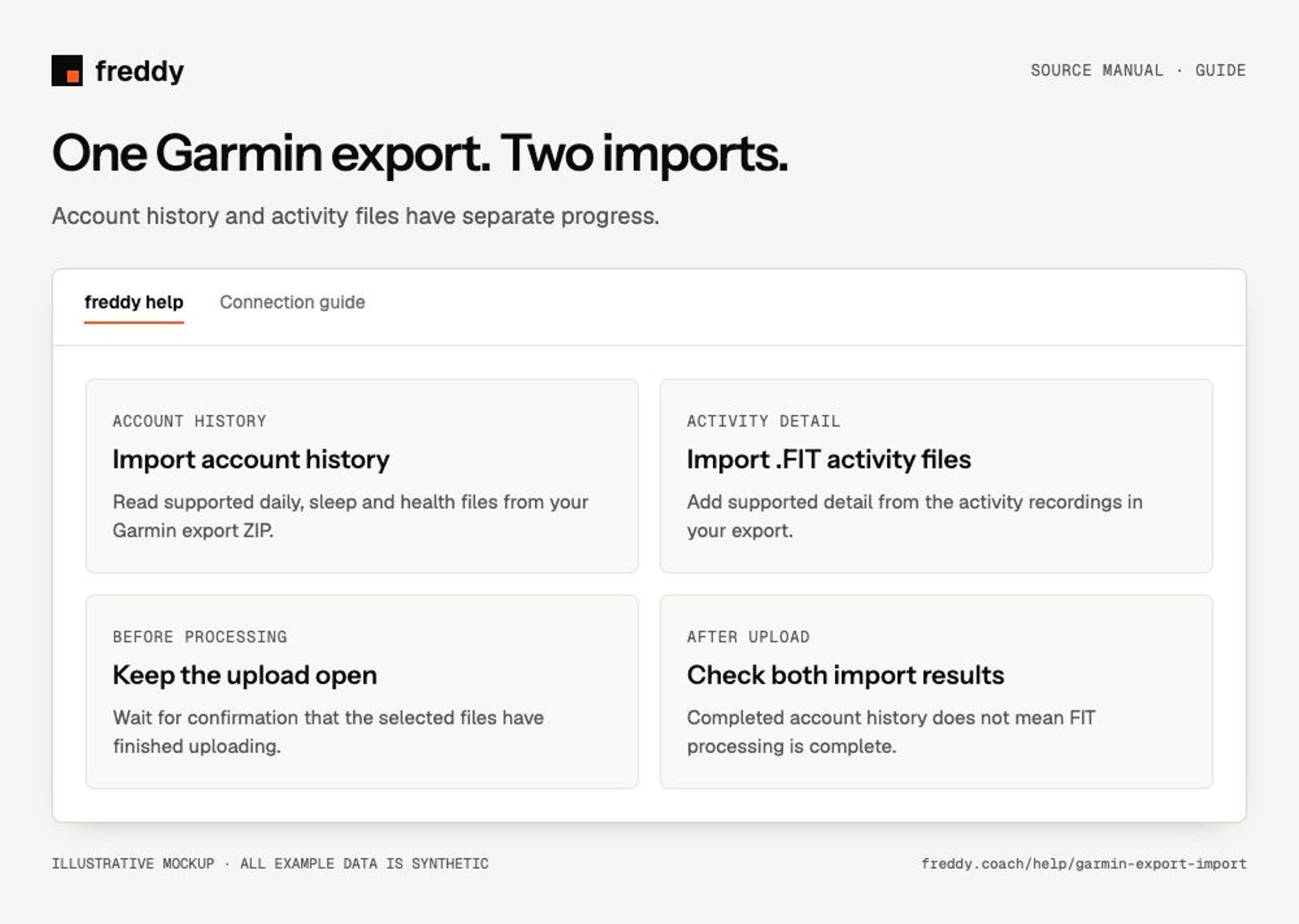
- Keep the page open until the upload finishes. After freddy confirms background processing has started, follow the progress on the source card.
This route imports supported daily activity, sleep and health history, plus available account-export series such as training and fitness estimates. Some imported series remain distinct from live Garmin series. Completing this step does not mean FIT files have been uploaded.
Import FIT activity files
- Choose Import .FIT activity files from the Garmin export options.
- Select the archive or files accepted by the import dialog. Review its scan result, selected files and any unreadable-file notice.
- Start the upload and keep the page open until it finishes. Then check the processing status and the activity dates that have arrived.
This separate route adds supported detail from activity recordings. Available fields depend on what the recording device and sensors wrote into each FIT file. A file can contain information that is not yet exposed as a queryable series.
Check the result
- Compare an older date in Data with the Garmin source and import series.
- Check both account-history and FIT progress if you started both. An upload finishing is not the same as all processing finishing.
- If new import support is added, the original export can be uploaded again to extract newly supported records. Existing recognized records are handled without requiring you to delete history first.
If something goes wrong
- No import option: check the Garmin source card’s available actions and contact support if the expected feature is missing.
- Upload interrupted: follow the dialog’s retry or resume action. Keep the page open for the next upload attempt.
- No supported files found: confirm this is the Garmin export, not a renamed archive from another service. Keep the original structure and file types.
- Some history is missing: check whether it belongs to account history, FIT detail or a category not included in the export.
History and deletion
Your AI client’s query window is separate from the history stored in freddy and available in Data or export. Disconnecting Garmin deletes its associated synced and imported data in freddy. Keep your original Garmin ZIP if you may need to restore older history after reconnecting.