Bring records Lose It! exports to your phone’s health platform into freddy, alongside sleep, activity and body measurements from other sources.
Before you connect
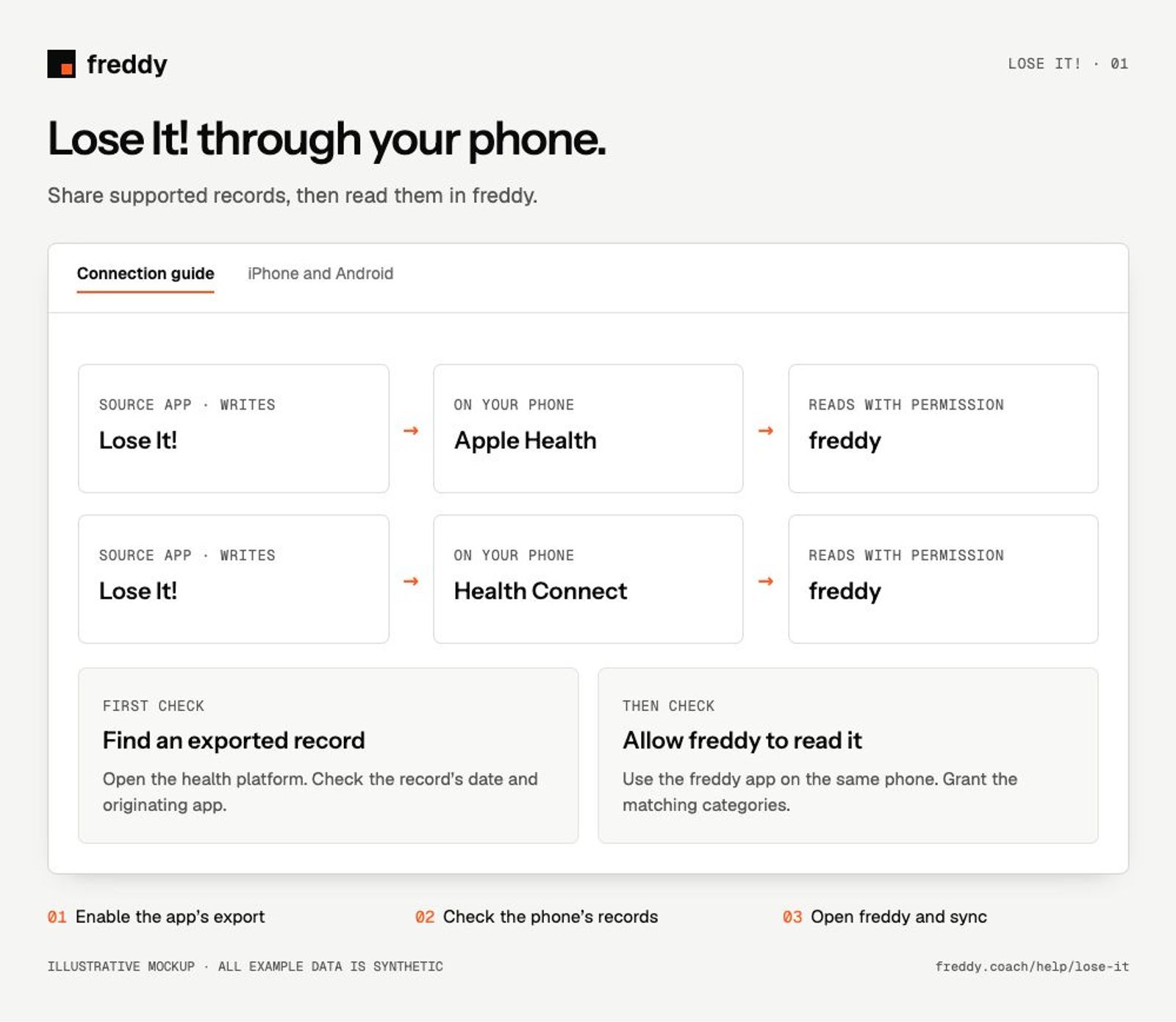
This is a phone bridge, using Apple Health on iPhone or Health Connect on Android. Install both Lose It! and freddy on the same phone and sign in to your own accounts. freddy does not sign in directly to Lose It! for this route.
Connect the source app
On iPhone
In Lose It!, open Profile → Automatic Tracking → Apple Health. Complete setup, then check Lose It!’s write permissions in Apple Health for the data you want to share.
Finish the freddy Apple Health setup
On Android
In Lose It!, open Profile → Automatic Tracking → View All → Health Connect. Review Manage data and access and enable the appropriate write permissions for Lose It!.
Finish the freddy Health Connect setup
Then open freddy on that phone, connect the matching health platform and allow it to read the same categories. Keep freddy open while the initial import progresses.
What reaches freddy
- Exported nutrition records and supported logged measurements.
- On Android, Lose It! supports writing nutrition and manually logged weight, exercise or steps when those permissions are enabled.
- Its calorie budget, bonuses and every diary detail are not guaranteed exported records.
The items Lose It! is allowed to read control data coming into its diary. For this route to freddy, check the separate write permissions and actual exported entries.
Check the connection
Find an existing nutrition or weight entry from Lose It! in the health platform. Check its source and date before comparing it with freddy.
History and updates
freddy reads supported records already written to the phone’s health platform. Lose It! decides which categories and dates it exports. Connecting today does not guarantee that its entire archive will be copied. Let the source app finish sharing before opening freddy; background updates depend on the phone’s scheduling.
If data is missing
- Missing from the health platform: check Lose It!’s export setting, write permissions and the original record. freddy cannot import a record that has not reached the platform.
- Present on the phone but absent in freddy: check freddy’s read permissions, the source’s active state and import progress.
- Some fields are missing: compare the actual exported record with the original. Enabling a category does not create fields the app does not export.
Use it with your other sources
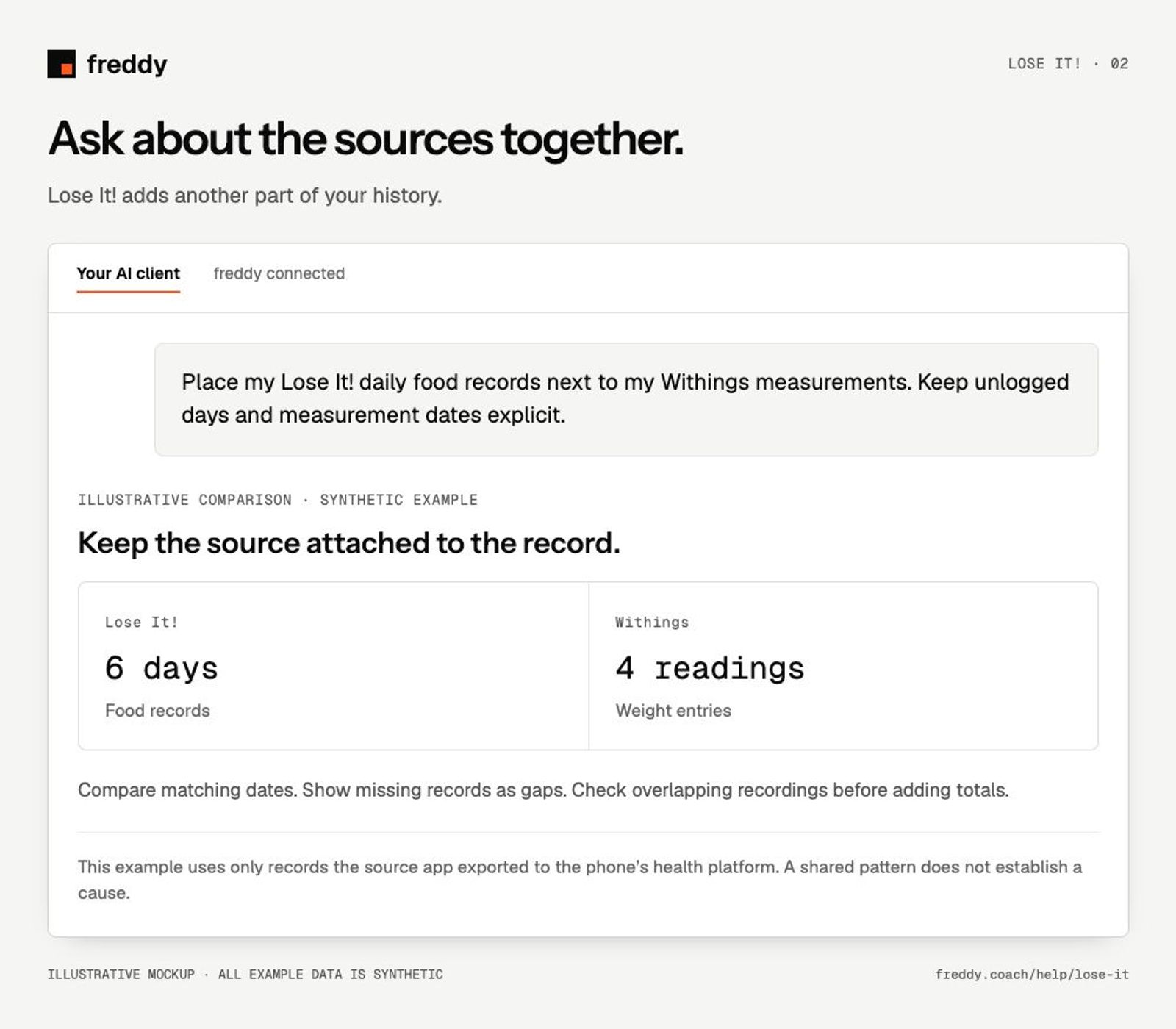
Place my Lose It! daily food records next to my Withings measurements. Keep unlogged days and measurement dates explicit.
Stop sharing or remove history
Turn off Lose It!’s write permissions to stop new exports to the phone’s health platform, or pause its contributing source in freddy to stop future import there. Previously imported history is separate: use Clear stored history in freddy and read the confirmation for its scope. Revoking a permission alone does not delete the copies already stored.