Bring readings from your Airthings monitors alongside sleep and other health records, with each room or device kept identifiable.
Before you connect
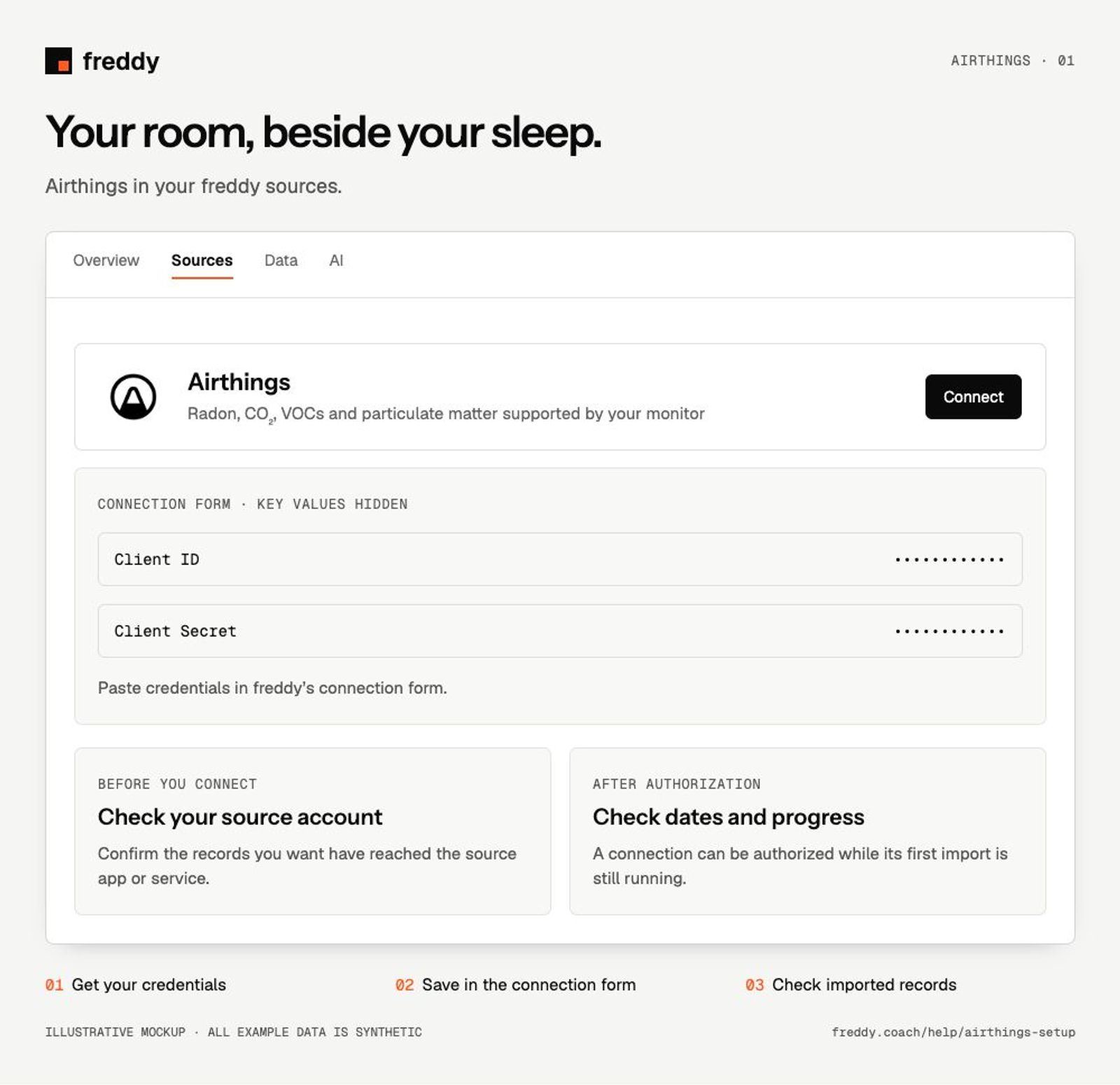
Use an Airthings consumer account with devices reporting to its cloud. This connection needs a Client ID and Client Secret from a Client Credentials API client.
Connect
- Open the Airthings Consumer API dashboard and its My Applications area. Register an app with the Client Credentials flow.
- Copy the Client ID and Client Secret. In freddy Sources, choose Airthings and paste them into the matching fields.
- Save the connection and compare each device’s latest reading with the Airthings app.
What reaches freddy
- Radon, CO₂, VOCs and particulate matter supported by your monitor.
- Temperature, humidity, air pressure and available device battery information.
- Timestamped readings from each connected device, plus supported historical CSV records you upload.
History and updates
The automatic connection reads current device values and builds history forward. For earlier readings, export an IAQ CSV from Airthings, then choose Upload history (.csv) in freddy. Select the correct device, confirm the timezone in which it recorded, and upload the CSV.
If data is missing
- Credentials are rejected: check the flow is Client Credentials and the ID and secret are in the correct fields.
- A room stopped updating: confirm that monitor is reporting to the Airthings cloud before using Sync.
- Imported times look shifted: check the timezone selected for the CSV. Do not import another room’s CSV under the wrong device.
Use it with your other sources
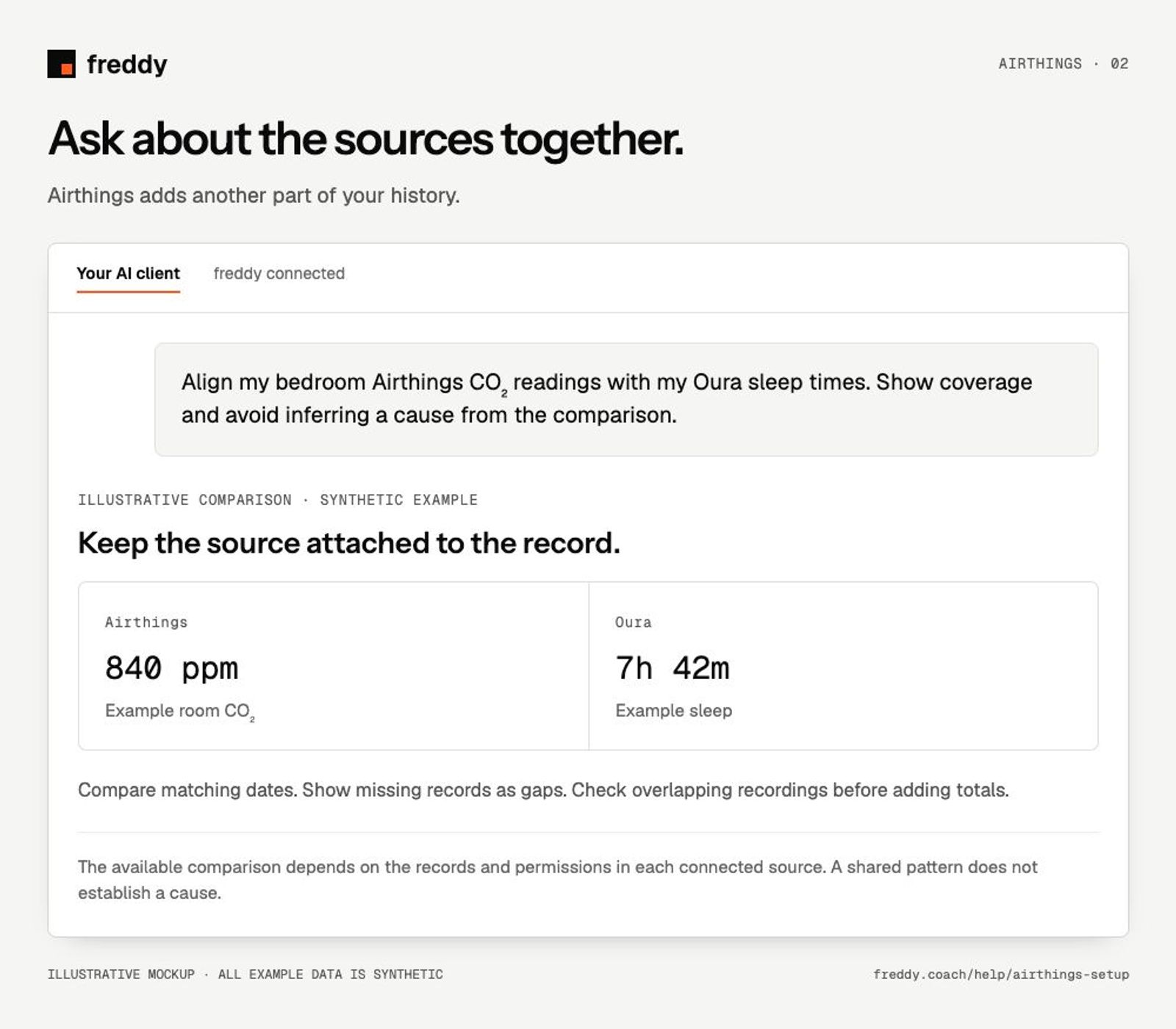
Align my bedroom Airthings CO₂ readings with my Oura sleep times. Show coverage and avoid inferring a cause from the comparison.
Pause or disconnect
Use Paused on the source to stop future sync without deleting its stored history. Disconnect removes the connection and its associated data from freddy; read the confirmation before continuing. It does not delete your records in Airthings. You can also revoke the key or API client in the source service’s settings.
Provider instructions
Airthings Client Credentials setup