Google Health is a direct account connection in alpha. It is separate from bringing Fitbit records through the Google Health mobile app and your phone’s health platform.
Before you connect
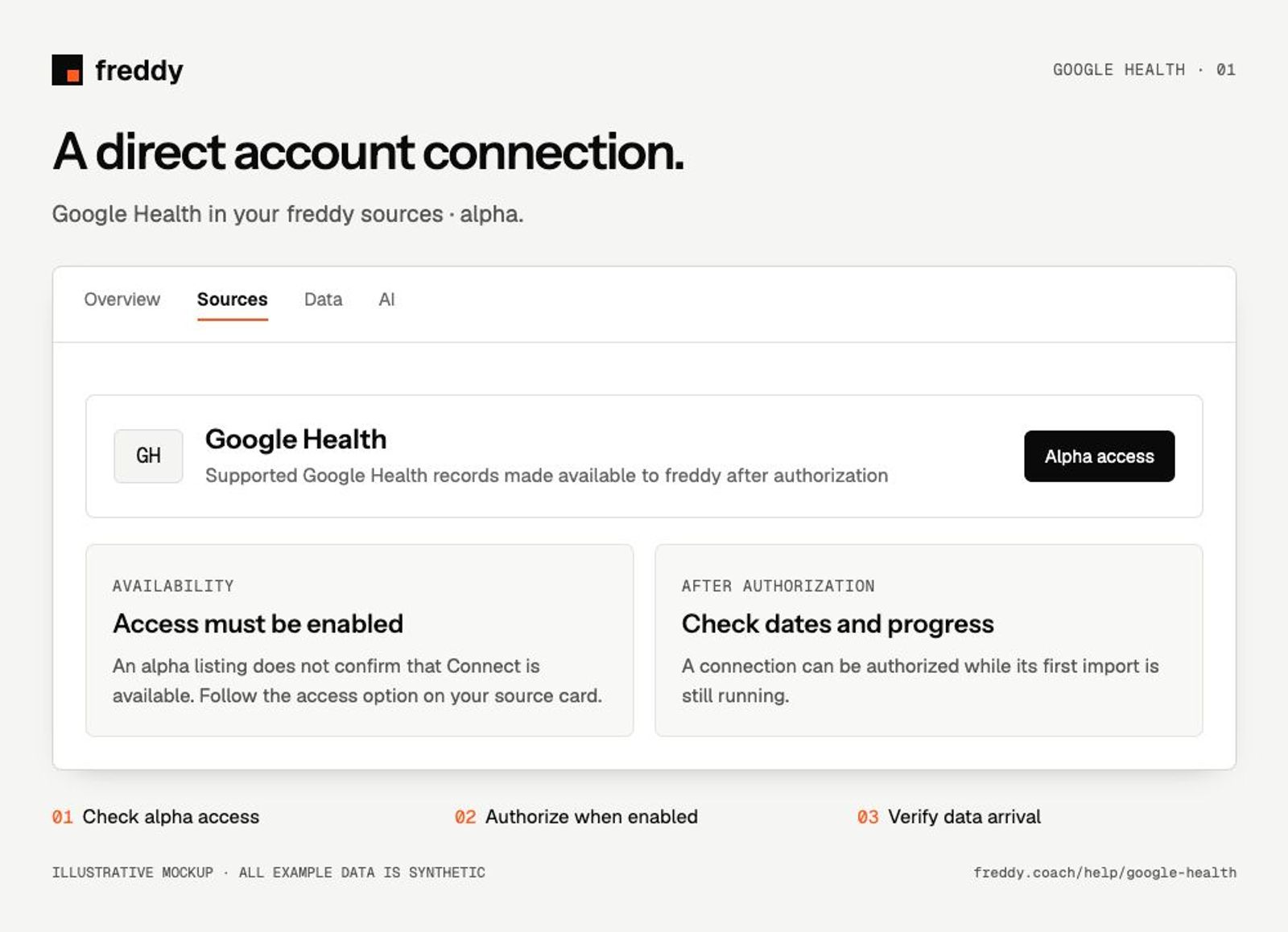
Check the Google Health source card for alpha access. The presence of the source in the catalog does not mean the connection is enabled for your account.
Connect
- Open Google Health in freddy Sources and follow the access option shown.
- If Connect is enabled, sign in to the Google account holding your Google Health records and review the requested permissions.
- Return to freddy and check actual data arrival as well as the connection status.
What reaches freddy
- Supported Google Health records made available to freddy after authorization.
- Available daily activity, sleep and health measurements for the enabled integration.
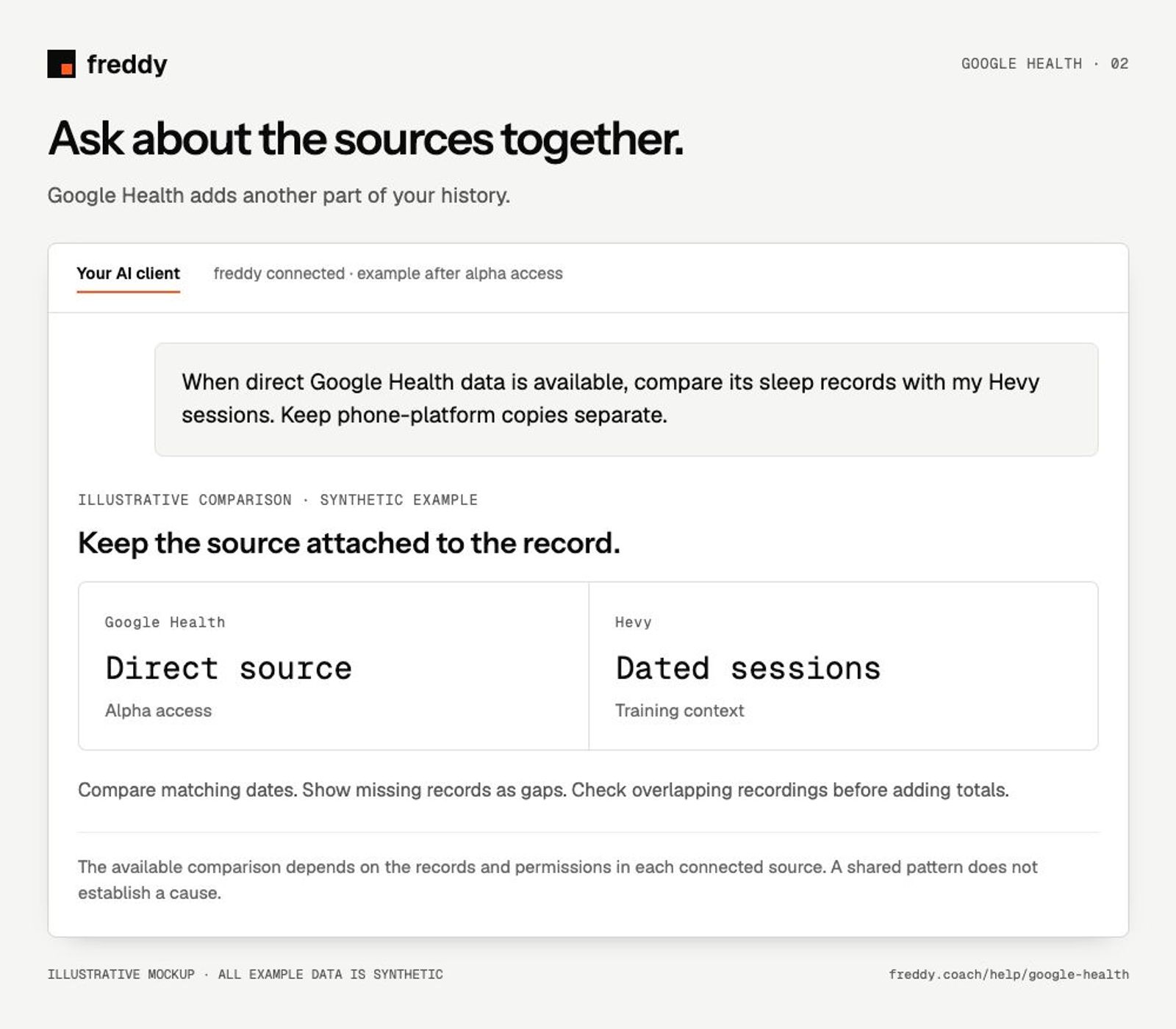
- Direct Google Health records remain attributable to that source, separate from Apple Health or Health Connect copies.
History and updates
Alpha availability, authorization and data arrival are separate steps. After access is enabled, the import can only read supported categories exposed for your account. Connecting this direct source does not grant freddy permission to read Health Connect on your phone.
If data is missing
- Connect is unavailable or access is restricted: use the access option on the card.
- You connected the Google Health phone app to Health Connect but the direct source is empty: those are separate routes. Follow the Google Fitbit bridge guide for the mobile route.
- Both routes are connected: inspect their source labels and overlapping dates before combining totals.
Use it with your other sources
When direct Google Health data is available, compare its sleep records with my Hevy sessions. Keep phone-platform copies separate.
Pause or disconnect
Use Paused on the source to stop future sync without deleting its stored history. Disconnect removes the connection and its associated data from freddy; read the confirmation before continuing. It does not delete your records in Google Health. You can also revoke freddy’s authorization in the source service’s connected-app settings.
Provider instructions
Google Health developer platform
Google Fitbit through the mobile app