Connect the training and wellness history you keep in Intervals.icu, then compare it with sleep, nutrition and measurements from your other sources.
Before you connect
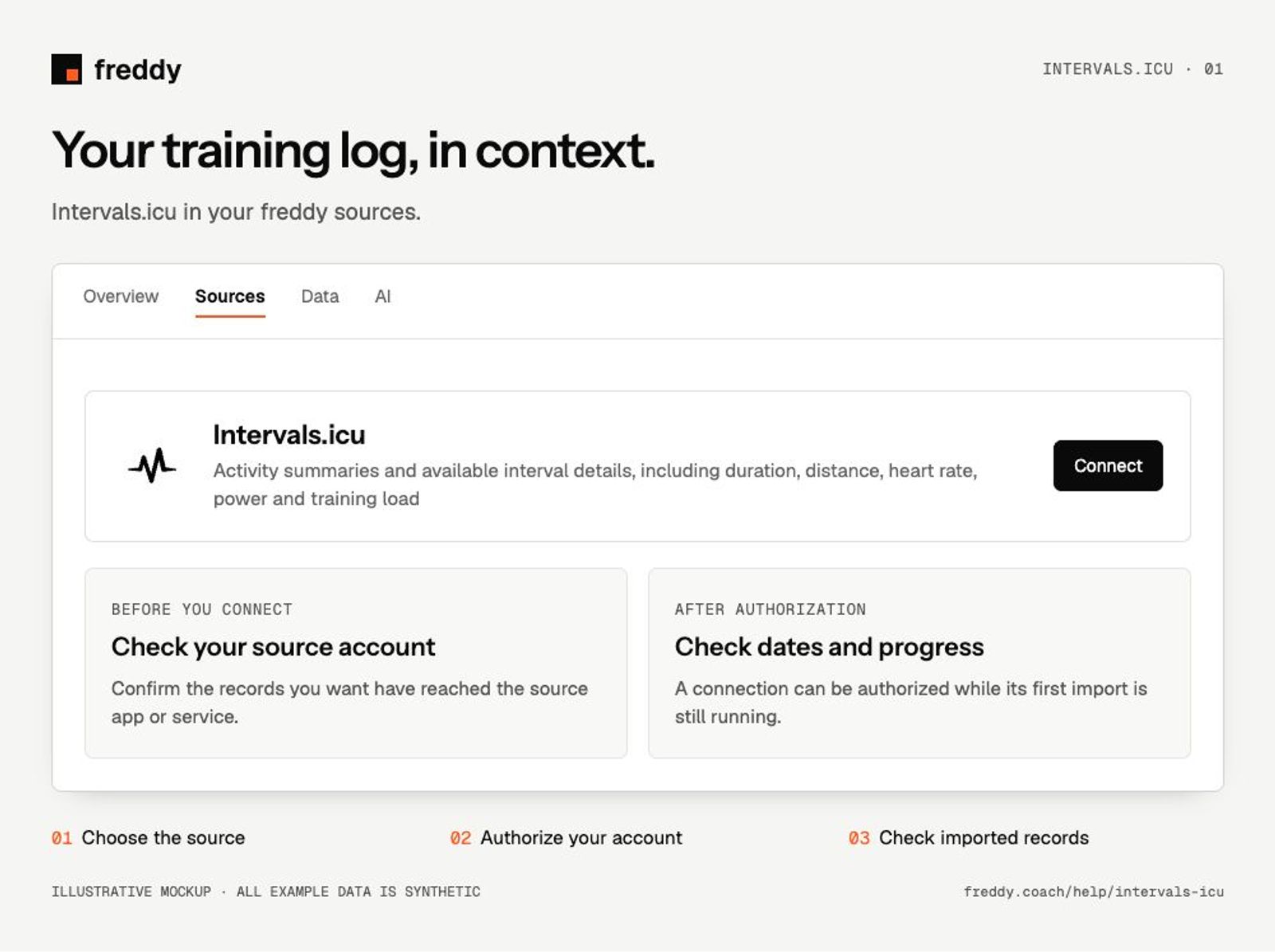
Sign in to your own Intervals.icu athlete account and confirm the activities you want are visible there. freddy uses the account authorization flow; you do not need to paste a personal API key.
Connect
- Open Intervals.icu in Sources and choose Connect when available.
- Sign in to the Intervals.icu account containing your records. Review the permissions and authorize the categories you want to share.
- Return to freddy and inspect the source’s import status and date coverage.
What reaches freddy
- Activity summaries and available interval details, including duration, distance, heart rate, power and training load.
- Wellness records such as sleep, resting heart rate, HRV and weight when present.
- Source-provided training estimates, kept distinguishable from recorded measurements.
History and updates
freddy imports available activity and wellness history and keeps the connection updated. Availability can differ for records imported into Intervals.icu from another service. A workout listed in the calendar does not guarantee all its underlying detail is available for export.
If data is missing
- A workout is absent: check its date and origin in Intervals.icu, then use Sync.
- A detailed chart is missing: the data shared by Intervals.icu can be narrower than the charts shown in its own app.
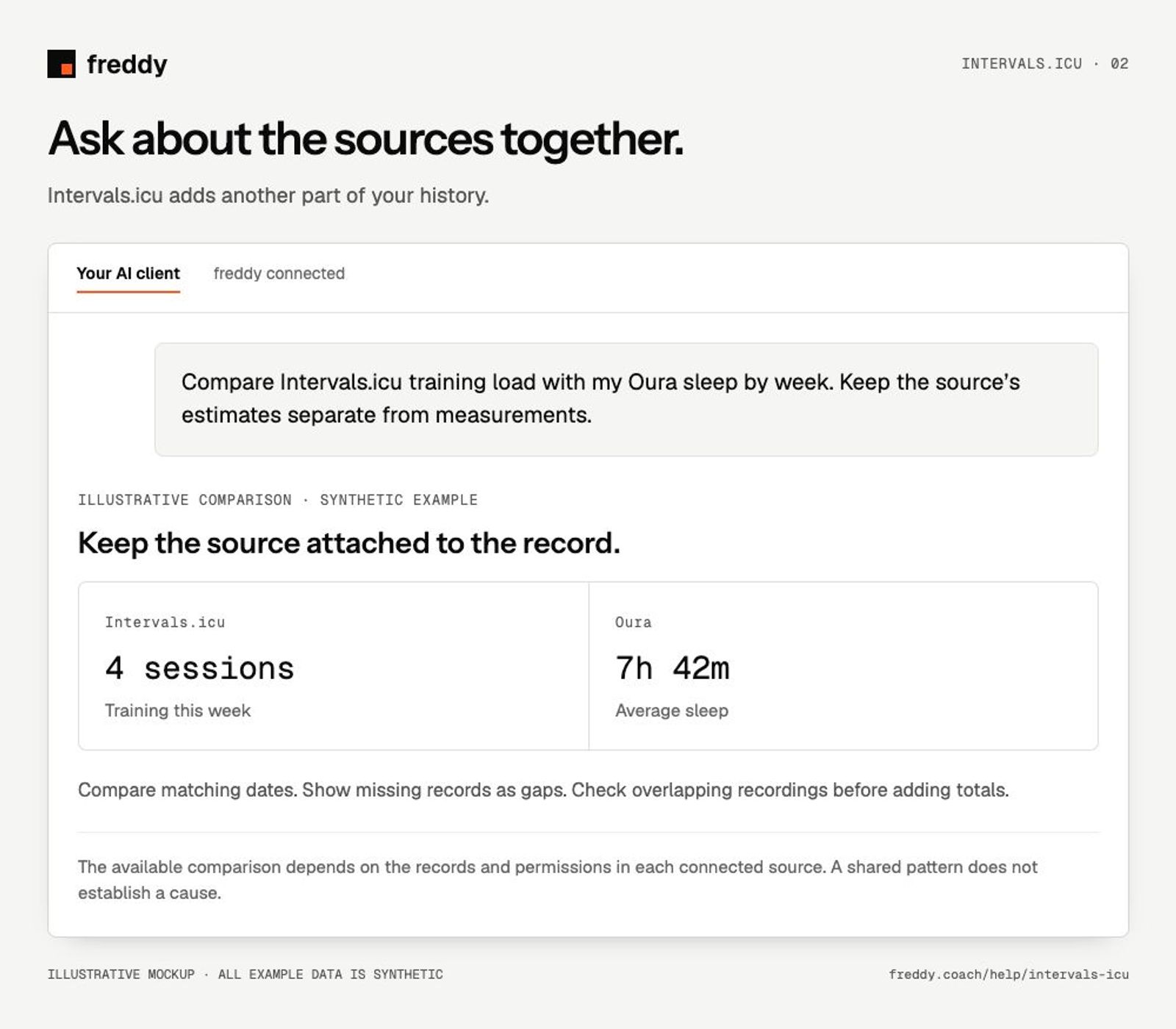
- The same ride appears from your device and Intervals.icu: ask your AI client to identify overlapping sessions before calculating totals.
Use it with your other sources
Compare Intervals.icu training load with my Oura sleep by week. Keep the source’s estimates separate from measurements.
Pause or disconnect
Use Paused on the source to stop future sync without deleting its stored history. Disconnect removes the connection and its associated data from freddy; read the confirmation before continuing. It does not delete your records in Intervals.icu. You can also revoke freddy’s authorization in the source service’s connected-app settings.
Provider instructions
Intervals.icu API and account authorization